
Your first Oopbuy parcel, in the official order
One 11-step sequence, from registration to tracking. Follow the decisions as well as the controls.
Before step one
Keep a modest first order, check destination eligibility for liquids, batteries and bulky goods, and budget for two payments. The sequence below follows the official Oopbuy tutorial 1740653409764216834, reviewed 18 October 2026.
These are official 2024 tutorial interfaces, privacy-redacted where needed. Some are resized instructional renditions. Example promotions and amounts are historical; your account interface may differ. Each image opens at full size.
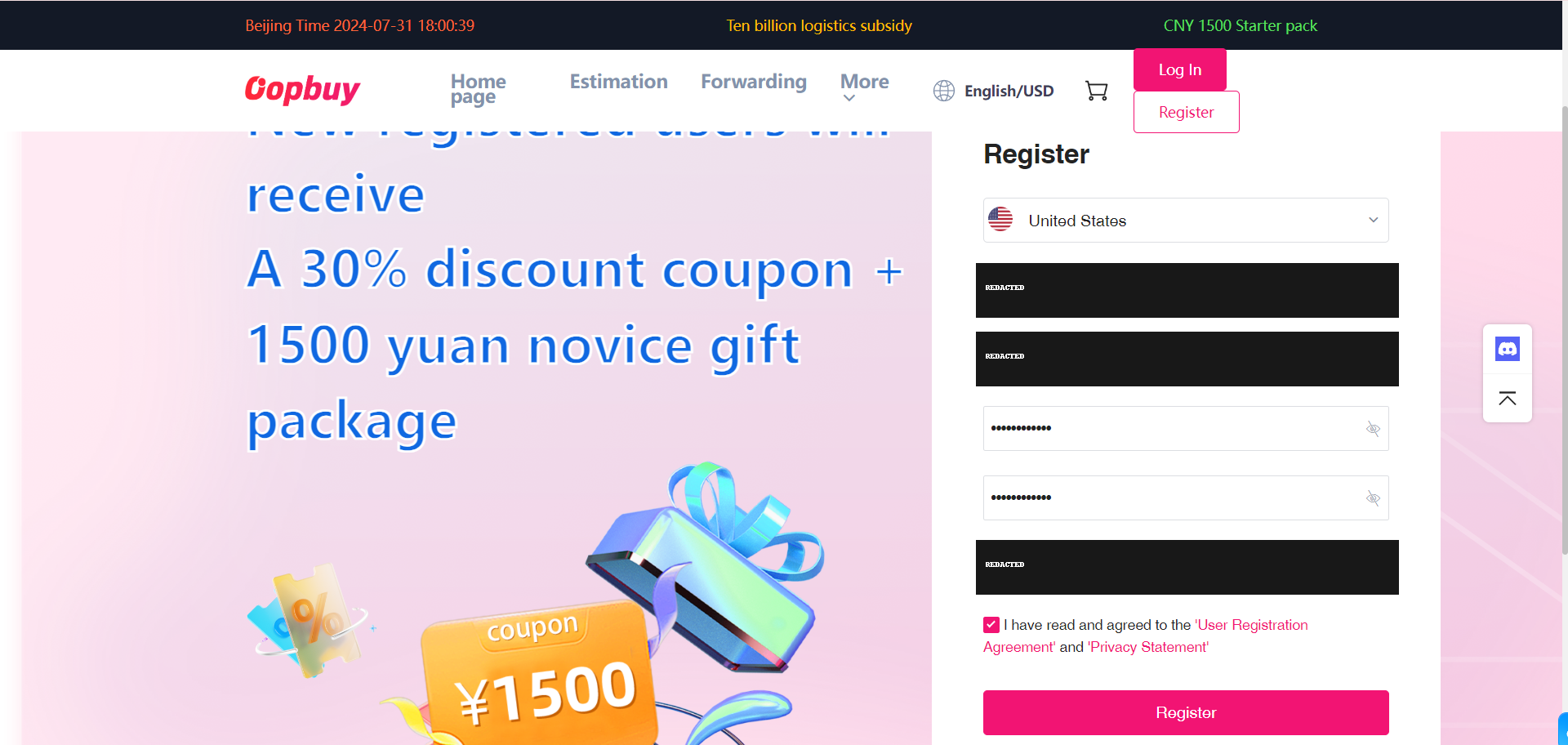
1. Register and secure the account
Use the official registration page and an email you can recover. Confirm your contact details before an order. The registration offer in this old screen is an example, not today's offer. Never share a password or verification code with a seller.
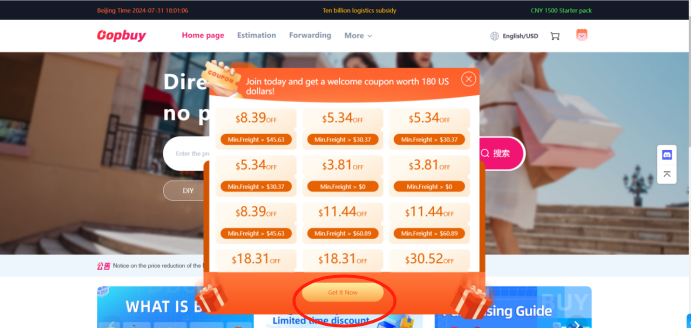
2. Review a coupon before claiming
Read the target bill, minimum spend, claim period and expiry in your own account. Claiming a coupon does not guarantee that it will apply to your intended parcel. See the coupon field guide for the distinctions.
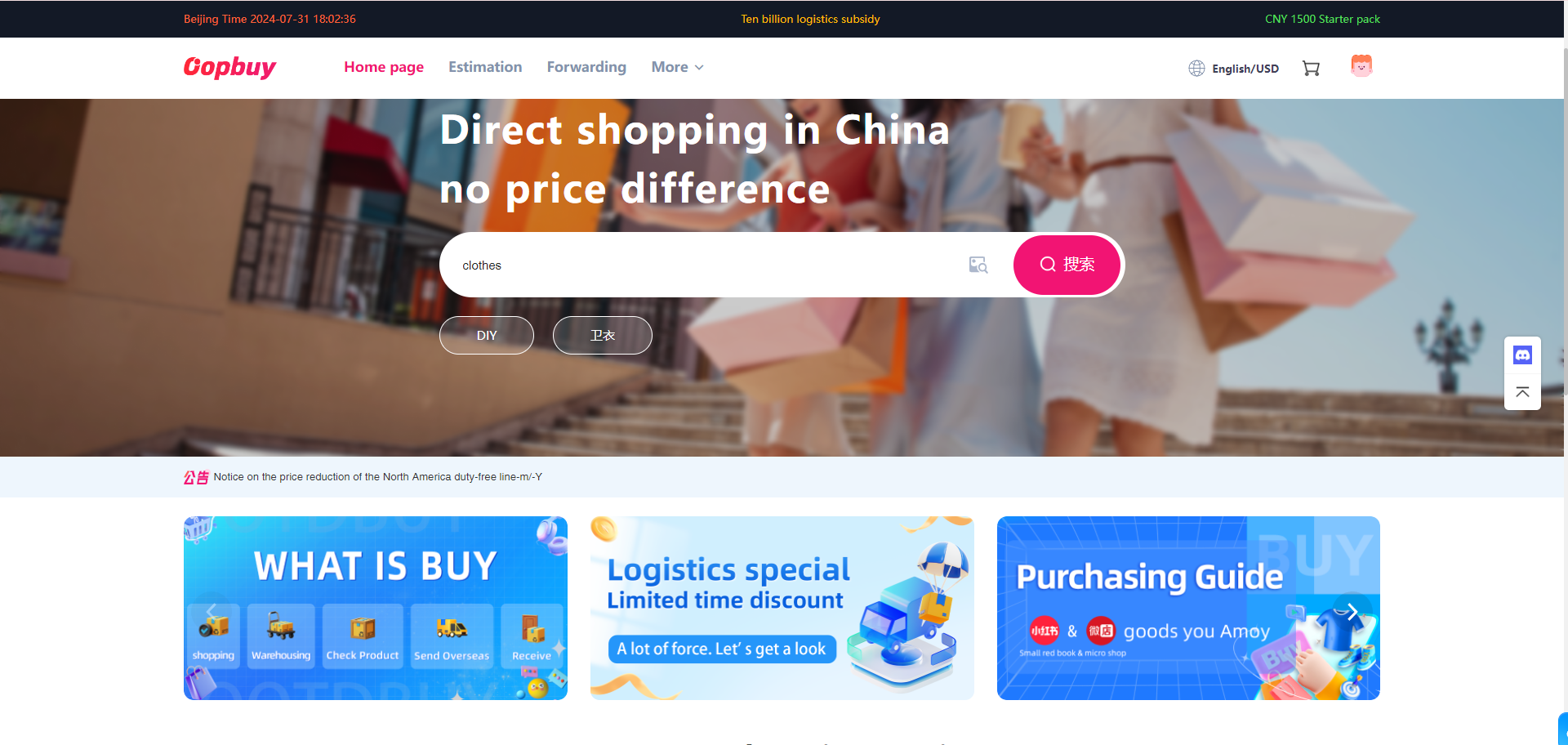
3. Search using the seller link
Browse the Spreadsheet, open the seller listing and copy its product URL into Oopbuy's search field. If parsing fails, recheck the URL and use the account's supported manual-order process. Do not substitute a similar-looking listing without rechecking its seller.
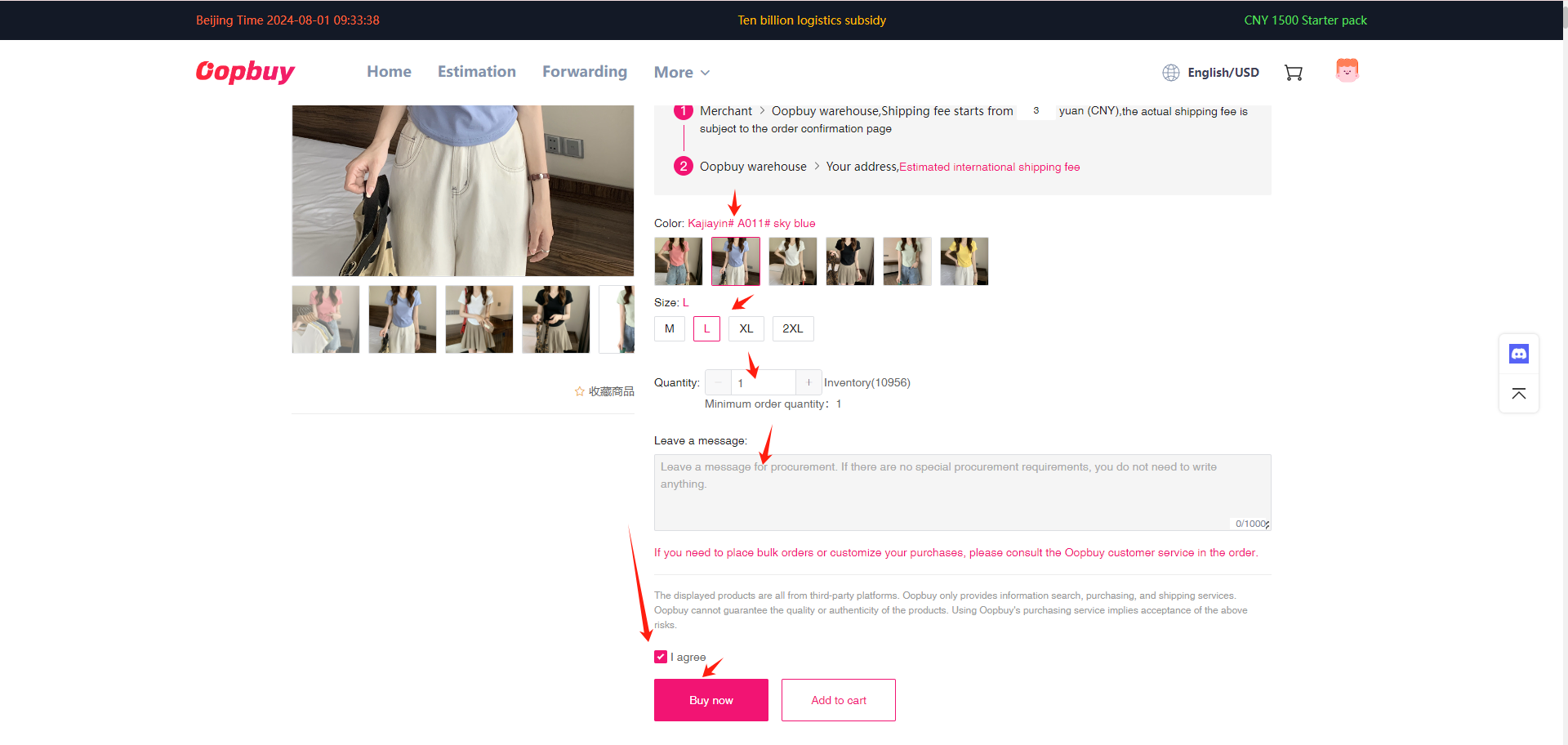
4. Choose the exact variant
Select colour, style, size and quantity. Compare the seller's centimetre measurements with a garment that fits, not only an S/M/L label. Save the listing and selected options. Ask for clarification before paying if two variants share the same photograph.
5. Review and pay for the item
Check the seller price, domestic freight, quantity and selected options. This first payment buys the item and gets it to the warehouse; it is not international delivery. Check the amount charged by your payment provider and the CNY credited to your account separately.
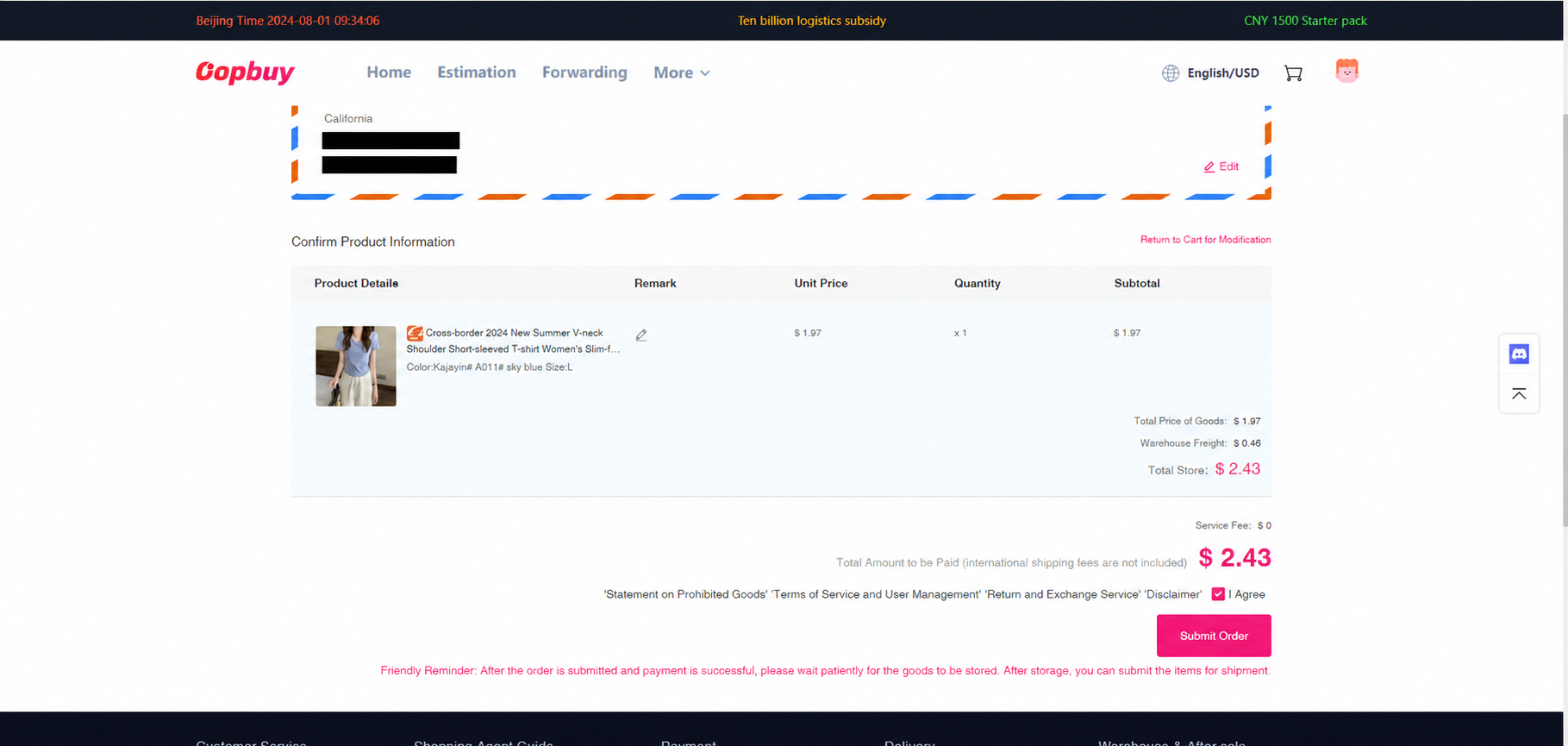
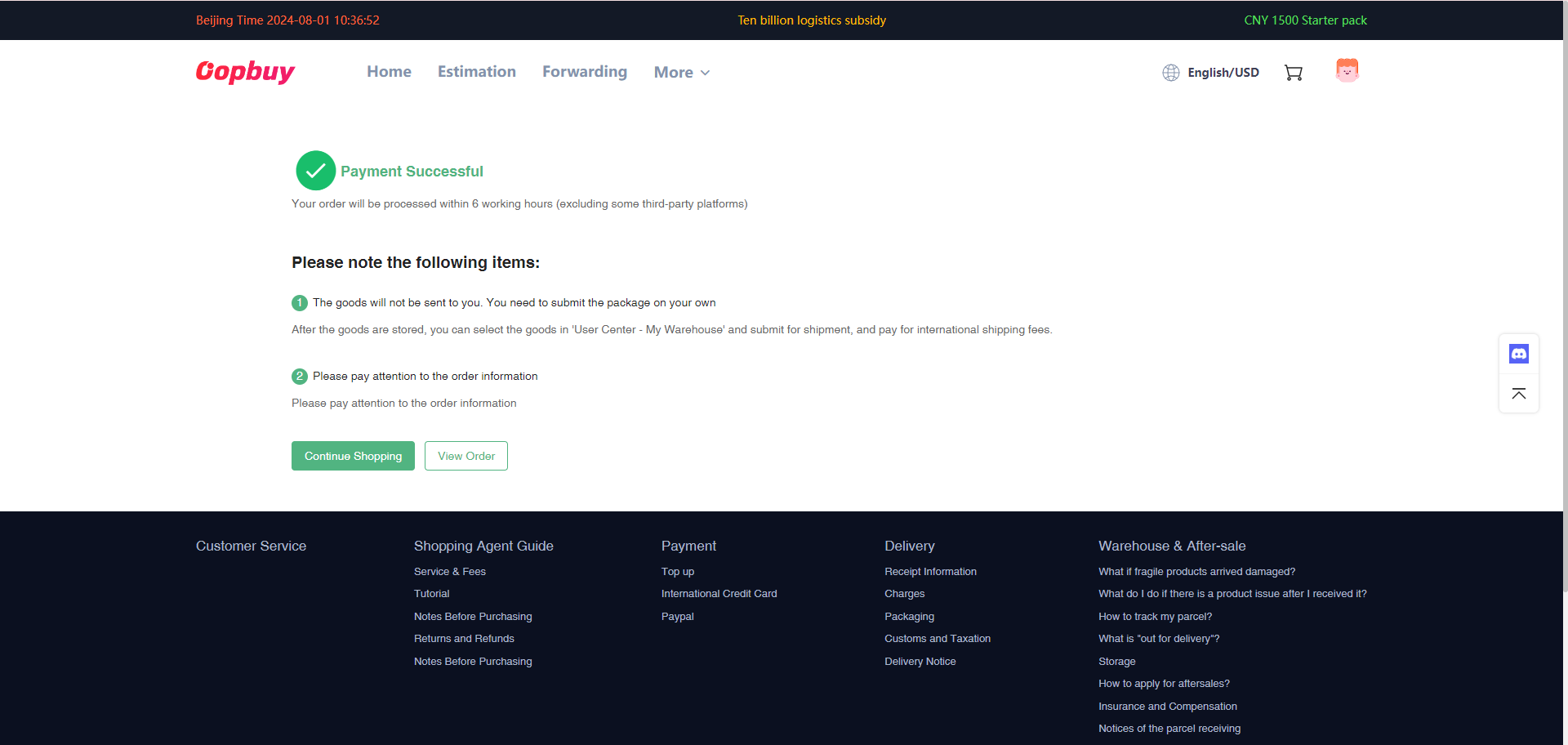
6. Follow the order status
An order confirmation means payment was accepted, not that the item has reached the warehouse. Follow purchase and seller-dispatch status; if the seller is out of stock, ask about cancellation or a refund rather than agreeing to an unreviewed replacement.
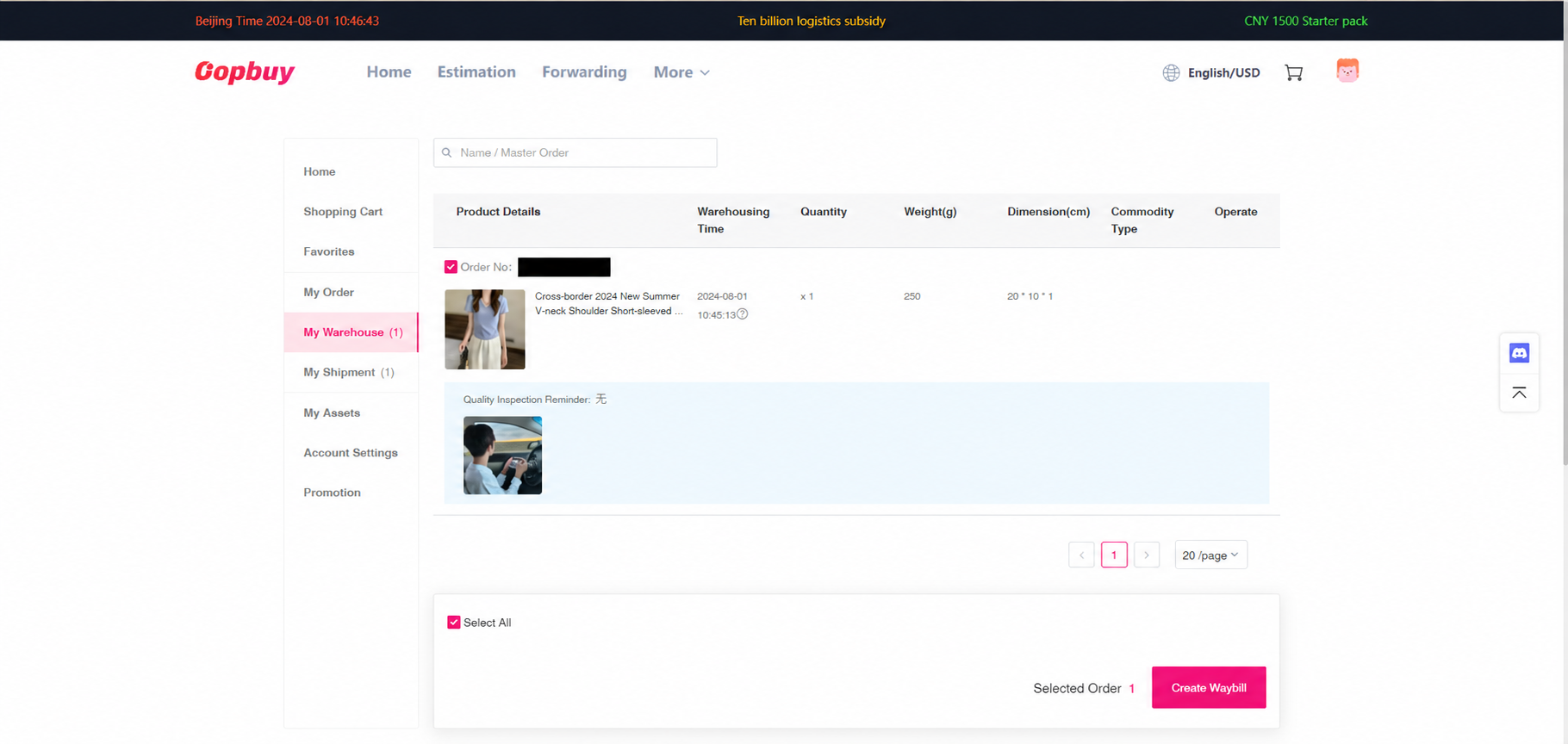
7. Inspect the warehouse item
When the item is stocked in, open every QC image at full size. Check variant, quantity, labels and visible condition against your saved listing. Request a specific measurement or detail photo before shipping. If you need a return, contact support promptly: seller eligibility and the conditional 120-hour window apply.
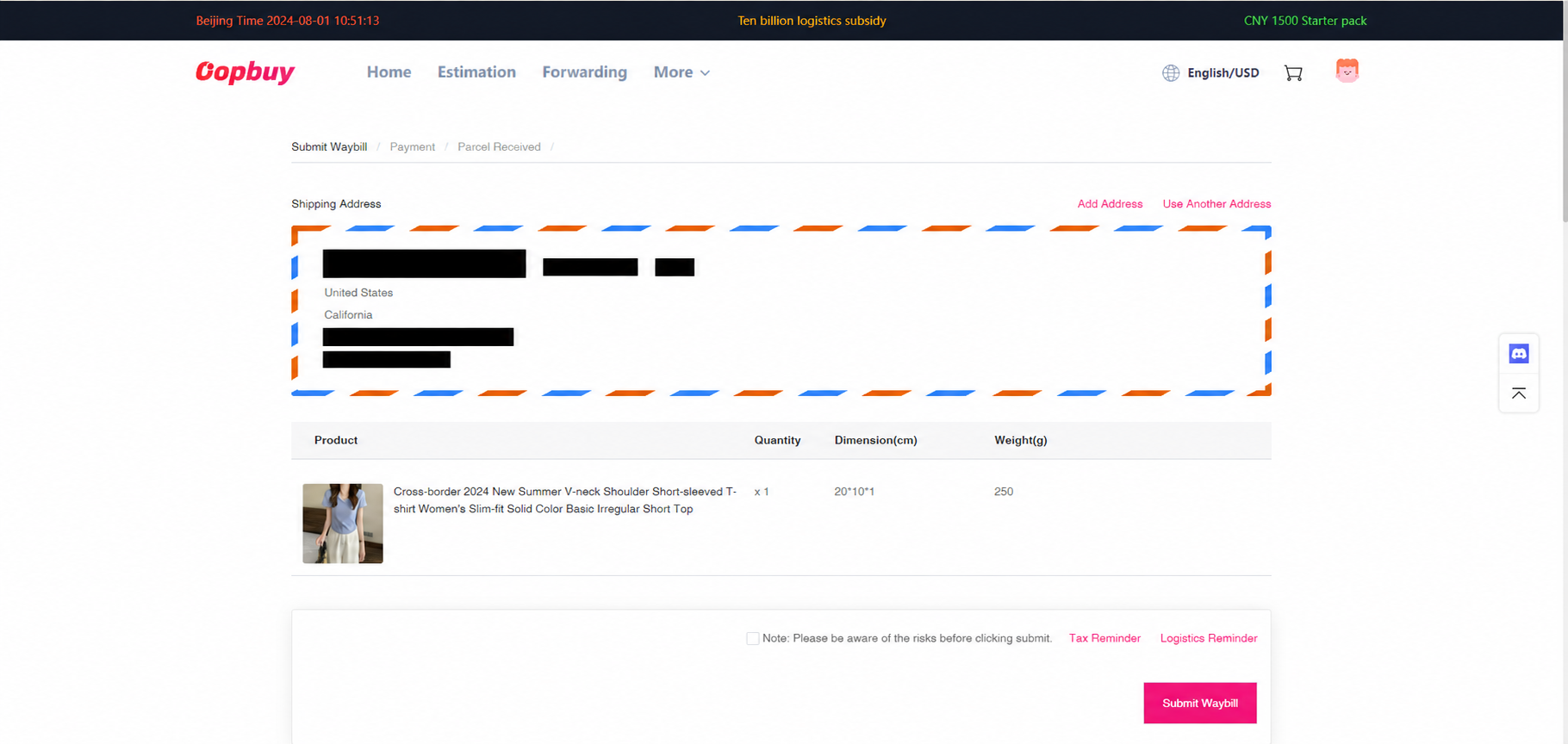
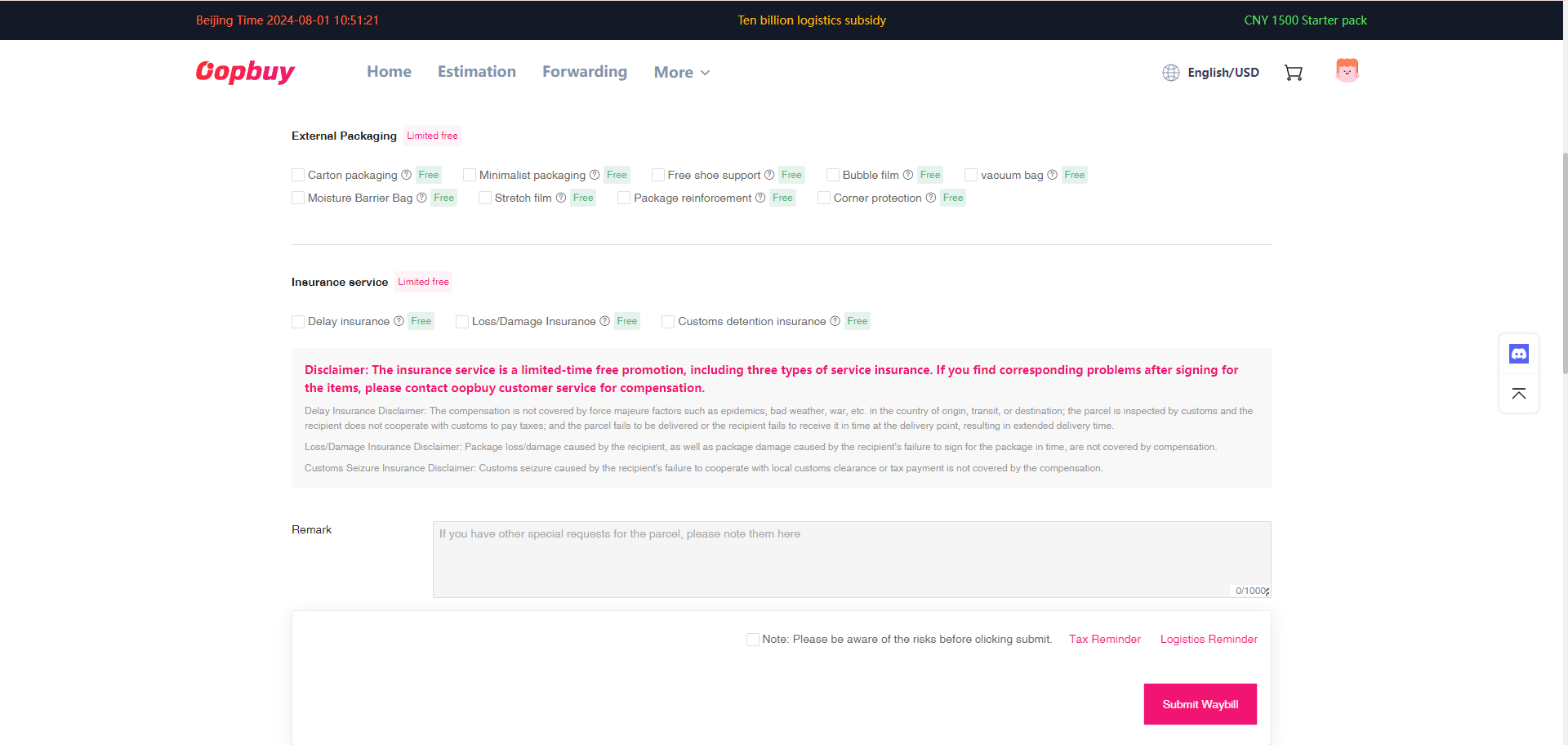
8. Create the waybill and packing request
Select only the items ready to ship. Confirm the full delivery address, destination and contact details; choose permitted packaging and a suitable shipping line. Check actual versus volumetric charging and the route's goods restrictions. Complete declarations accurately using the account instructions.
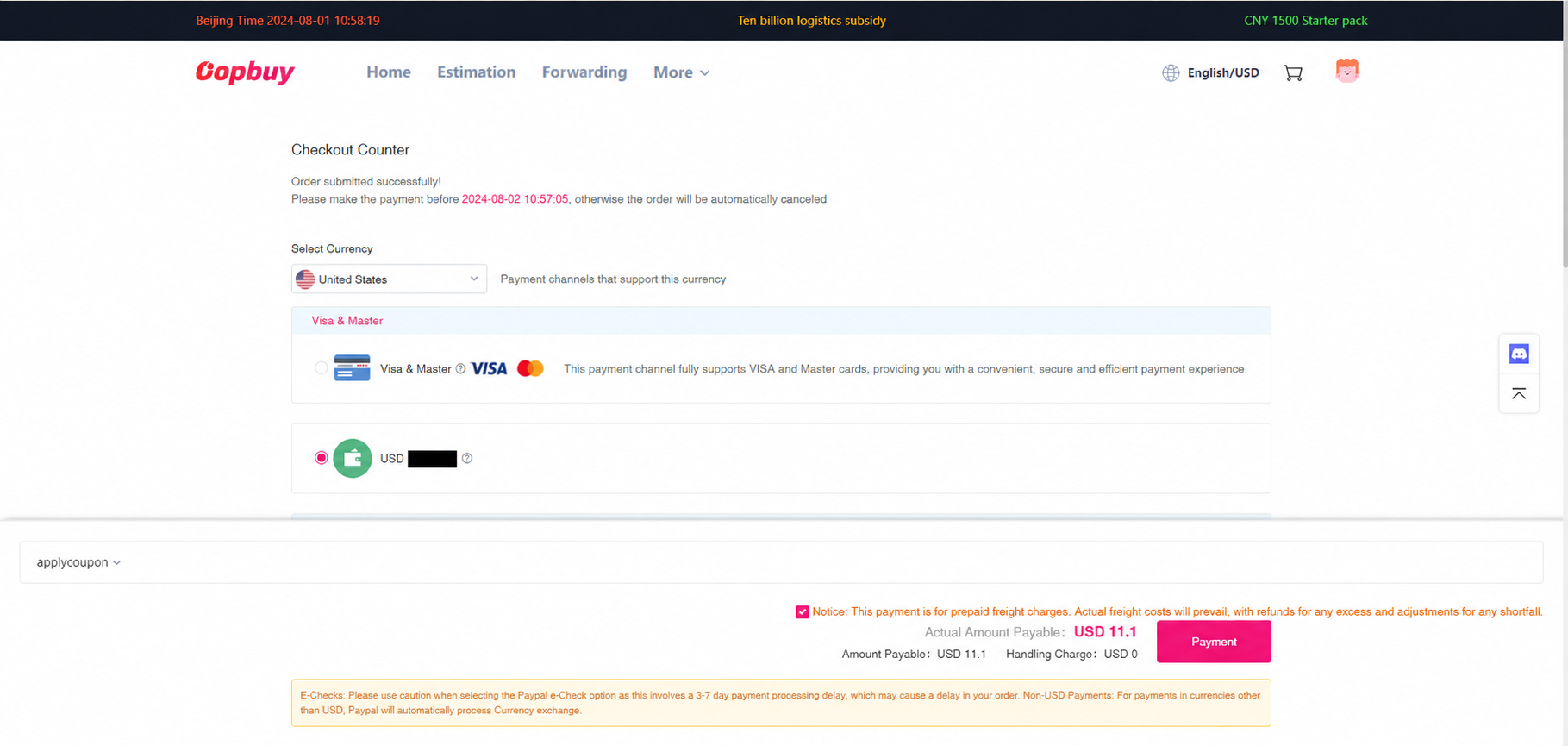
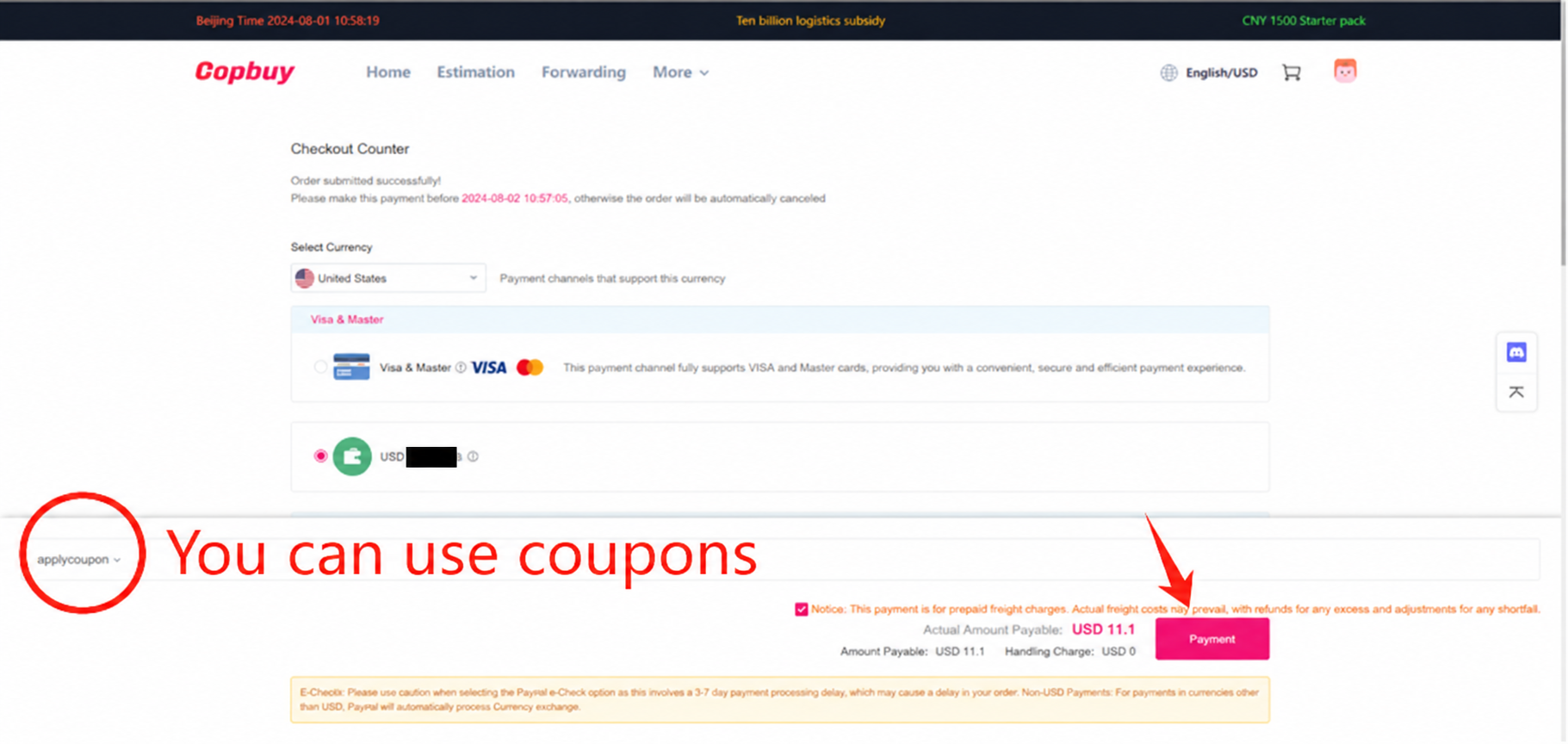
9. Check the estimated freight
Review estimated freight and any eligible coupon at the parcel-payment stage. An estimate can change after packing and measurement. Do not add unwanted goods merely to reach a discount threshold; compare the complete extra cost.
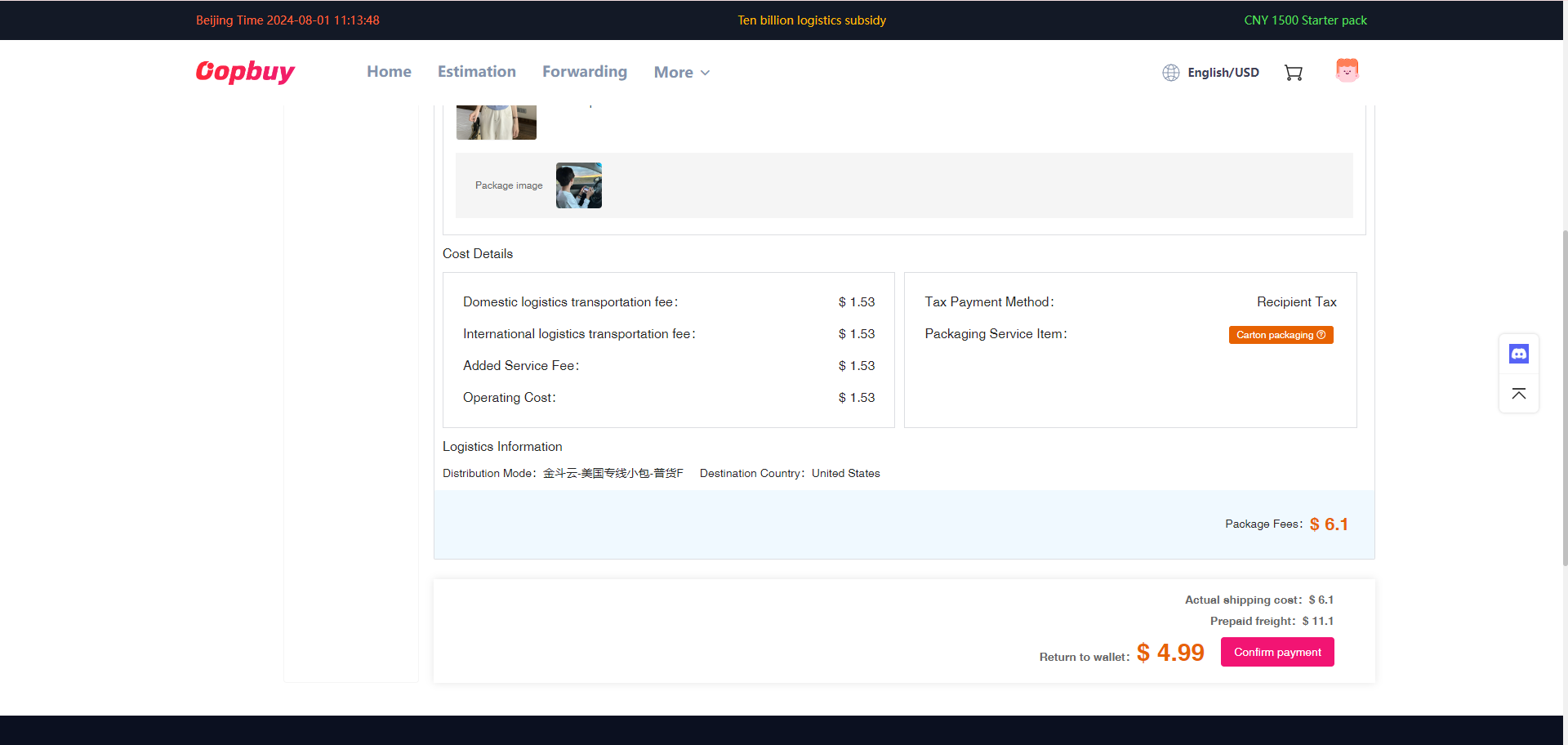
10. Review the settlement
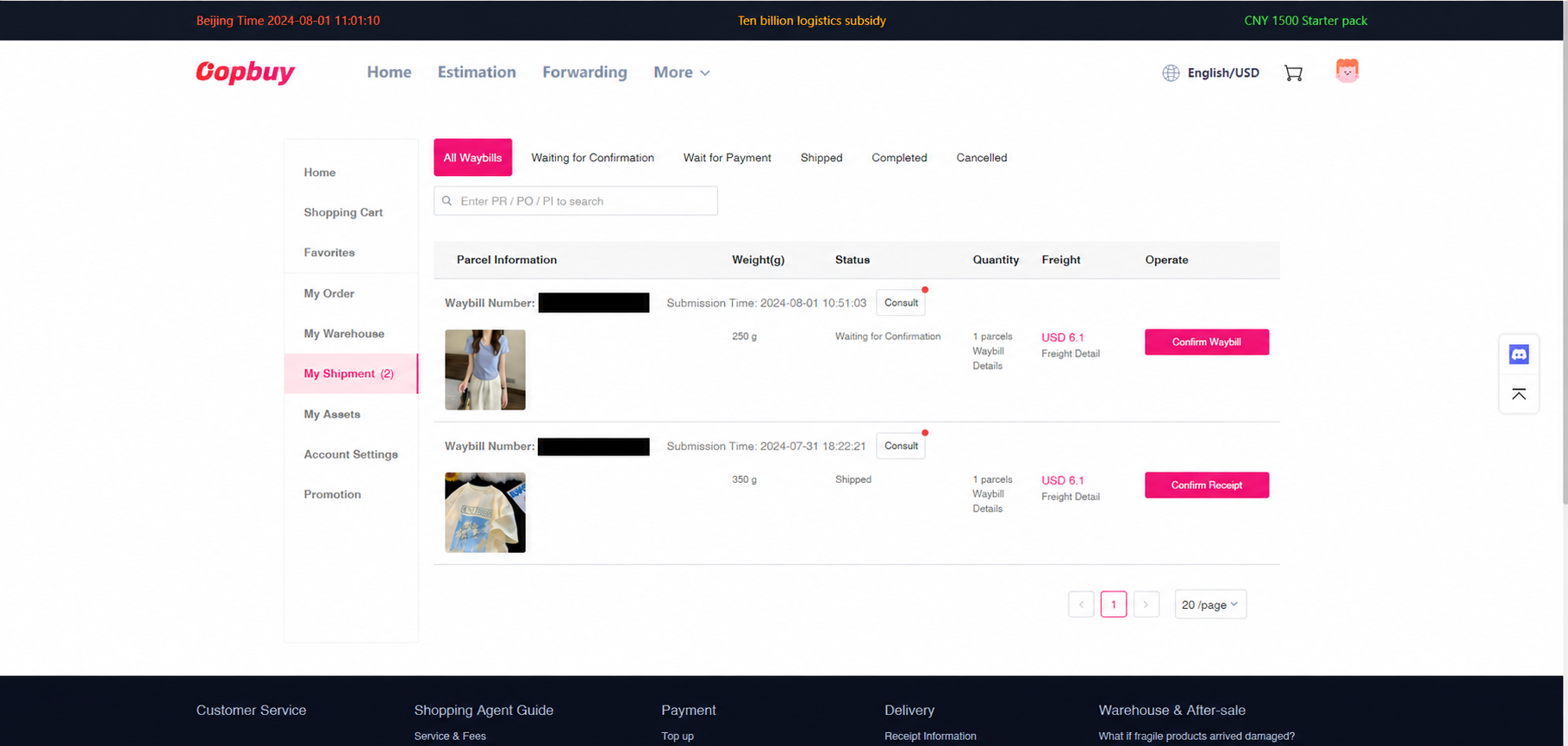
Packing can change the chargeable weight and the amount due or refundable. Inspect the final parcel breakdown and resolve a balance request in your account. Keep the bill and packing details; a displayed old dollar figure is not a quote for your parcel.
11. Track, receive and document
Use the parcel record to obtain the tracking number. Separate label creation from the first carrier scan. On arrival photograph damaged packaging before opening, record missing or damaged items and keep the packaging. Contact official support with order/parcel IDs and evidence within the applicable claim terms.
If a step stops making sense
Pause before authorising the next payment or dispatch. For a wrong variant or defect, follow the QC decision checklist. For an unexpected parcel amount, use the packing and chargeable-weight checks. For an account-specific problem, gather the IDs, screenshots and requested remedy before contacting official support.